Permissions
Tabularia decides who may see and do what with folders: every object lives in a folder, and a permission granted on a folder, to a user or to a group, holds for the folder and everything below it. This page is for administrators and for whoever looks after a team's folders: the model, the five capabilities, the administrator and observer roles, and what each common action needs.
At a glance
| Unit of permission | a folder, inherited by its subfolders |
| Subjects | users, groups (a user gets the grants of every group they belong to), service accounts |
| Capabilities | VIEW, RUN, EDIT, MANAGE (each includes the ones before it) and CONNECT (on its own) |
| Kind of rules | grants only: there is no deny |
| Where | Explore → a folder → Folder settings → Permissions |
| Who grants | whoever has MANAGE on the folder; administrators everywhere |
| Roles above folders | administrator (personal or through a group), observer (reads the administration panels) |
How it works
Folders
Flows, datasources, connections, saved views, SQL scripts, Python and R scripts, notebooks, reports, dashboards and flow groups all belong to exactly one folder. Folders nest. Only administrators create top-level folders (the personal folders below aside); whoever has MANAGE on a folder creates folders inside it.
A permission on a folder holds for every subfolder, however deep. The folders above the ones you can read show in Explore by name only, so the path to your folders can be walked; their content stays hidden. Because there are only grants, a subfolder cannot be closed to someone who has a permission above it: keep data that a group must not see in a branch of its own.
Personal folders
Every person gets a folder of their own when their account is created: by an
administrator, at the first single sign-on, or as the first administrator at start-up.
It sits at the top level and is named after the part of the email before the @
(leonardtriv@example.com gets leonardtriv); when a top-level folder has that name
already, it takes a number, as copies do (leonardtriv (1)). Accounts created before
this release get theirs at their next sign-in.
The person has EDIT on it: they upload files there, build flows, datasources, views and reports and dashboards, run and schedule them, and rename the folder. Nobody else is granted anything, and a top-level folder inherits nothing: only the person and the administrators see it. In Explore it comes first, with a key on the folder and the tag My folder; an administrator sees everyone's, after the shared folders, tagged Personal.
The person does not have MANAGE, and that is deliberate:
- no CONNECT: a connection can point at any host the workers reach, so being able to create one is what lets someone copy data out of the installation or probe the internal network. It stays a right an administrator gives. Data reaches the folder from the connections the person was granted elsewhere;
- no sharing and no subfolders: a folder its person could share would let a copy of a datasource they may only read reach people nobody granted it to.
An administrator can grant more on it, as on any folder: a colleague's access, or CONNECT or MANAGE to the person. Python and R scripts, notebooks and Container nodes still need the use of their environment or registry, which the folder does not give.
So that it is not lost by mistake, nobody but an administrator can delete it, move it under another folder or remove the person's own EDIT, even with MANAGE on it. Should an administrator delete it or take that grant away, the person gets a new, empty one at their next sign-in.
When the account is deactivated nothing changes. When it is deleted, an empty folder goes with it; one holding anything stays, with its content, as an ordinary top-level folder that only the administrators and whoever it was shared with see: the content belongs to the organization, as everywhere else.
Service accounts and accounts that only observe get none: a public demo's guest is one
account shared by many visitors, and a folder of its own would let any of them write.
Upgrading from a version where the person held MANAGE lowers that grant to EDIT and
removes the MANAGE and CONNECT grants on these folders; connections already made there
stay, and only the administrators see them.
The creation is in the audit log as folder.create, with "personal": true.
The capabilities
| Capability | Lets you | Includes |
|---|---|---|
| VIEW | see the folder's content; open flows, datasources, saved views, scripts, reports and dashboards; preview and export data; read a report or a dashboard and download it; ask the assistant about the datasources | |
| RUN | run flows, refresh datasources, write a SQL script's datasource, run scripts and flow groups, and schedule all of them | VIEW |
| EDIT | create, change, rename, move, duplicate and delete content; write a datasource's data contract; publish a flow's result into the folder | RUN, VIEW |
| MANAGE | grant and revoke permissions on the folder, create subfolders, move and delete folders | EDIT, RUN, VIEW, CONNECT |
| CONNECT | see, create, change, test, browse and use the folder's connections | nothing else |
CONNECT stands apart on purpose. Someone with VIEW, RUN or EDIT on a folder does not see its connections; someone with CONNECT alone sees the connections and nothing else. That is how a team is allowed to import from the ERP database without being able to change the flows next to the connection, or the other way round.
Dashboards
A dashboard is an object of its folder: VIEW opens it, chooses its parameters, clicks, refreshes it and downloads its PDF and its image; EDIT designs, renames, moves, duplicates and deletes it, and restores a version. Without VIEW it answers as one that does not exist.
Opening it lends no rights. What each tile reads is checked with the rights of whoever reads, at every request and before anything shared is looked at: a tile on a dataset the reader may not read says so inside the tile, with no number and no name of a column, whether or not someone else has just read it, and the other tiles work.
A flow group that sends one reads with the rights of whoever runs the group: the author of its schedule, for a scheduled run, checked again at every send. Nobody looks at it before it leaves, so a dataset the author may not read stops the cell, with its name, and nothing is sent. Someone else who changes what the dashboard reads switches the schedule off: the rules of the Pushmail cell.
Granting
In Explore, open the folder and its Folder settings (shown only with MANAGE). The
Permissions list shows the grants made on this folder, not the ones inherited
from above. Choose Group or User, the subject, the capability, then Grant.
In the interface, administrators grant to single users and to groups, other folder
managers to groups (the API, POST /projects/{id}/permissions, takes either). The cross beside a grant revokes it.
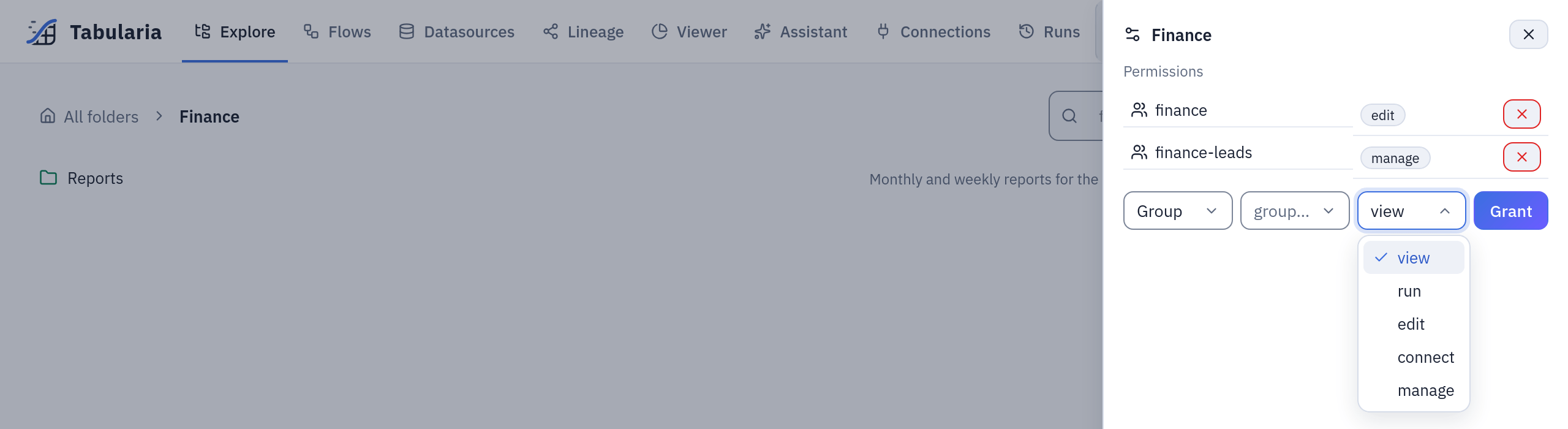
Folder settings of Finance, as in the example below: two grants on this folder, and the form for a third with the five capabilities.
Prefer groups. A person who changes team changes groups, and the folders follow. With single sign-on the groups can come from the identity provider (group mapping).
Every grant and revocation is in the audit log (permission.grant,
permission.revoke), and so is moving a folder (folder.move), which changes what its
whole subtree inherits. Moving a folder needs MANAGE on the folder and on its new
parent.
Administrators
An administrator can do everything, everywhere, whatever the folder grants say. Someone is an administrator either by their own flag or by membership of an administrators' group:
- Administration → Users: Make administrator on the person.
- Administration → Groups: Make the group's members administrators; everyone in the group, and anyone who joins later, is an administrator.
With single sign-on, OIDC__SUPERUSER_GROUP names the identity provider's group whose
members are administrators; the personal flag is then rewritten at every SSO sign-in, so
use a Tabularia group for anything that must stick. Nobody can remove their own
administrator rights, by any route: another administrator must do it, which also keeps
at least one administrator in place.
Administrators alone manage users, groups, group membership, service accounts, webhooks, the engines that may be chosen, the AI models, scripting environments, container registries, the SIEM forwarding, backups and the settings of the Administration page. The export to dbt is for administrators only, because the project it produces carries definitions and data from other folders too.
Observers
An observer reads the administration panels without being able to change anything: Admin, Queue, Monitoring, Performance, Cluster and Audit, under Administration. It suits an auditor, a security officer or an on-call colleague. The role is granted like the administrator's, on a person or on a group (the eye button, Open the administration panels read-only).
What an observer sees is masked: emails as a***@example.com (the domain stays), no IP
addresses, no browser strings, and in the audit details no hosts, paths, SQL,
recipients or people's names. Their own actions are recorded without their IP address
and browser.
An account that is only an observer is treated as a shared account, the kind a public demo signs everyone in with: it has no personal API tokens, cannot change its password, sees and closes only its own session, and its questions to the assistant are not saved. On its folders it has whatever it was granted, usually VIEW.
Service accounts
A service account is an integration rather than a person: an administrator creates it in Administration → Service accounts; it has no password and signs in only with its API tokens. It gets permissions like anyone else, from its groups and from folder grants. A token is never more powerful than its account, and a Read only token refuses every change. The details are in the API guide.
Schedules run with their author's rights
A scheduled flow, refresh, flow group, script or SQL script runs with the rights of the person who set the schedule, and those rights are checked again every time it fires:
- an author who is disabled or deleted switches the schedule off;
- a right the author no longer has stops the run before it starts: depending on the object, the run is recorded as failed with the reason, or the schedule switches itself off;
- a change by someone else that makes the object reach further (another source, another output connection or publish folder, new code in a Script node, another image in a Container node, the object moved to another folder) switches the schedule off, and the audit log says why. The author's own changes keep it.
So a schedule never does more than its author chose, with rights the author still has. See Scheduling.
What each action needs
"On the folder" means the folder of the object acted on.
| Action | Needs |
|---|---|
| See a folder's datasources, flows, views, scripts, groups | VIEW on the folder |
| Preview a datasource, open it in the Viewer, export it as CSV or Excel | VIEW on the datasource's folder |
| Upload a file | EDIT on at least one folder |
| Create a datasource from a database, SFTP, S3, an API or SharePoint | EDIT on the destination folder and CONNECT on the connection's folder |
| Refresh a database datasource, or schedule its refresh | RUN on the datasource's folder and CONNECT on the connection's folder |
| Rename, move, delete a datasource | EDIT on its folder (and on the new one, to move it) |
| Read a datasource's data contract | VIEW on its folder |
| Write, check or remove a data contract | EDIT on the datasource's folder |
| Open a flow | VIEW on its folder, and the use of every scripting environment and container image it runs |
| Create, change, delete a flow | EDIT on its folder |
| Run a flow | RUN on its folder, VIEW on every datasource it reads, EDIT on the folder it publishes to, CONNECT on every connection an Output node writes to or sends email through |
| Schedule a flow | RUN on its folder (and all the above, again, at every run) |
| Run an unsaved flow from the editor | RUN on the folders of the data it reads |
| Ask the flow assistant to change a flow | EDIT on the flow's folder |
| Ask the assistant about data | VIEW on the datasources it reads |
| See, create, change, test or browse a connection | CONNECT on the connection's folder |
| Open a flow group, see its runs | VIEW on its folder |
| Create, change, delete a flow group | EDIT on its folder, and RUN on the folder of every flow, datasource or script added as a cell |
| Run or schedule a flow group | RUN on its folder; each cell is checked again when it runs |
| A Pushmail cell | CONNECT on the SMTP connection and VIEW on every datasource it attaches |
| Open a saved view | VIEW on its folder, and VIEW on its datasource to see the data |
| Save a view | EDIT on the destination folder and VIEW on the datasource |
| Open and run a SQL script | VIEW on its folder; on a connection, CONNECT on it; the datasources it names readable by you |
| Write a SQL script's datasource, schedule it | RUN on the script's folder and EDIT on the datasource's folder |
| Save, move, delete a SQL script | EDIT on its folder |
| See a Python or R script | VIEW on its folder and the use of its environment |
| Run or schedule a Python or R script | RUN on its folder; EDIT where it publishes |
| Grant permissions, create subfolders, delete a folder | MANAGE on the folder |
| Delete or move a personal folder, remove its person's MANAGE | administrator |
| Create a top-level folder, export a flow to dbt | administrator |
| Read the audit log and the other administration panels | administrator or observer |
Who may use a scripting environment or a container registry is set by an administrator per group (Python and R, Container registries). Someone without it cannot open a flow that uses it: the flow is listed greyed out, with the reason.
Example: a Finance team
The sales data comes from the ERP and the CRM, imported into a folder Sales by the data team. Finance should read it, build its own flows and reports in its own folder, and touch nothing else.
1. Folders. An administrator creates two top-level folders:
Sales                 ← datasources orders, order_rows, customers; the ERP connection
Finance
└── Reports           ← created later by Finance itself
2. Groups. In Administration → Groups, the administrator creates
finance and finance-leads and adds the people (or lets single sign-on fill them).
3. Grants. In Folder settings of each folder:
| Folder | Group | Capability | Why |
|---|---|---|---|
| Sales | finance | view | read orders and customers, preview, export |
| Finance | finance | edit | build flows and views, run them, publish results here |
| Finance | finance-leads | manage | create subfolders, grant access to colleagues |
The same grant over the API, with an administrator's token (folder 7 is Sales,
group 4 is finance):
curl -X POST https://tabularia.example.com/api/projects/7/permissions \
  -H "Authorization: Bearer tab_…" -H "Content-Type: application/json" \
  -d '{"group_id": 4, "capability": "view"}'
4. What follows.
- A Finance analyst builds a flow in Finance/Reports that joins
ordersandcustomersfrom Sales and publishesMonthly revenue by channelinto Finance/Reports: VIEW on Sales covers the reads, EDIT on Finance covers the run and the publish. - They do not see the ERP connection in Sales (no CONNECT), so they cannot refresh
ordersor import new tables: the data team keeps that. - They schedule the flow every morning. If they later leave the
financegroup, the next scheduled run does not start and records why. - A
finance-leadsmember grants VIEW on Finance/Reports to themanagementgroup: managers read the reports, and nothing else of Finance.
Limits and good to know
- No deny, no per-object grants. Permissions are on folders only; a datasource that a group must not see goes in a folder that group has no grant on, above or below.
- Moving changes access. An object moved into another folder takes that folder's permissions. Moving a folder takes its whole subtree with it, which is why it needs MANAGE at both ends.
- Changes are immediate. Rights are read at every request, so a revoked grant, a removed group membership or a removed administrator flag takes effect on the next click; open sessions are not needed to end.
- Deleting a user removes their grants, group memberships, sessions and tokens; what they created stays, and their audit entries keep their email.
- Folder deletion needs MANAGE and an empty folder: no subfolders, flows, datasources, connections or other objects.
Related
- Security and governance: the map.
- Audit log: what every grant, run and export leaves behind.
- Concepts: folders, flows, datasources and runs.
- Connections: CONNECT, kind by kind.
- Single sign-on with Keycloak and group mapping.
- Tabularia API: tokens and service accounts.