Sources
A datasource is a named table in the catalog: a snapshot of data that flows, saved views, SQL scripts, the Viewer and the AI assistant read. This page lists every way a datasource comes into being, what each one needs, and the rules all of them share: snapshots, refreshes, descriptions, sort keys, data contracts, permissions and lineage.
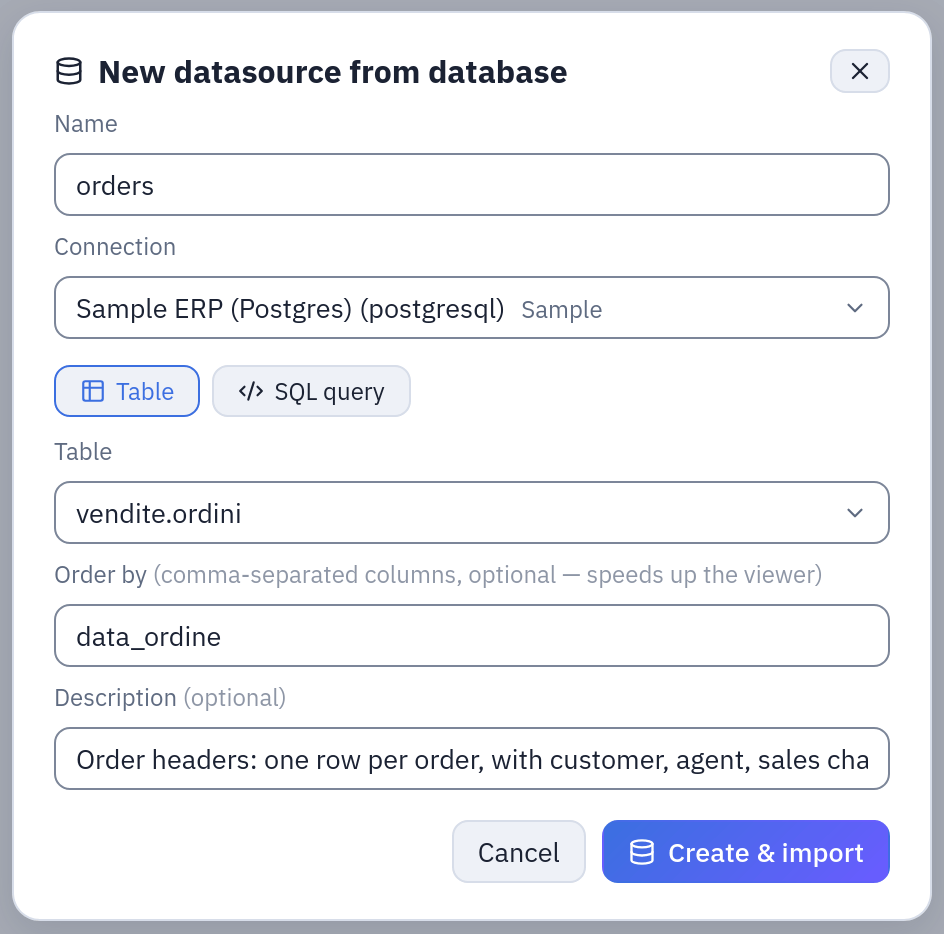
New → Datasource from a database in a folder: the most common way in, here for the sample orders (the example).
Every source at a glance
| Source | What it reads | Connection needed | How it is updated | Page |
|---|---|---|---|---|
| Uploaded file | One CSV, TSV, TXT, JSON, NDJSON, Excel or Parquet file, uploaded in the flow editor | None | Upload it again; it reaches the catalog through a flow's Output node | Uploaded files |
| Database table or query | A table, a view or a SQL query on PostgreSQL, MySQL, MariaDB, ClickHouse, Trino, Oracle or SQL Server | A database connection | By hand, on a schedule, or in a flow group | Database tables and queries |
| S3 folder | The files of a bucket folder that match a glob, stacked into one table | An S3 connection | By hand, on a schedule, or in a flow group | S3 buckets |
| SFTP folder | The files of a server folder that match a glob, stacked into one table | An SFTP connection | By hand, on a schedule, or in a flow group | SFTP folders |
| API call | The records of one or more requests to a REST/JSON API | An HTTP API connection | By hand, on a schedule, or in a flow group | HTTP APIs |
| SharePoint | Excel and CSV files of a document library that match a path or a glob | A SharePoint connection | By hand, on a schedule, or in a flow group | Excel on SharePoint |
| Google Sheets | One tab of a spreadsheet, whole or a range | A Google Sheets connection (a service account, read-only) | By hand, on a schedule, or in a flow group | Google Sheets |
| Flow output | The result of a flow, written by an Output node «Tabularia Datasource» | None of its own: the flow's sources | At every run of the flow: by hand, on its schedule, or in a flow group | Flow and SQL script results |
| SQL script result | The whole result of a saved SQL script | None, or the database connection the script runs on | «Refresh now», on the script's schedule, or in a flow group | Flow and SQL script results |
| Python or R script output | What a saved script writes at TABULARIA_OUTPUT, with «Also publish it as a datasource» | None of its own: a scripting environment (Kubernetes installations) | At every run of the script: by hand, on its schedule, or in a flow group | Python and R |
Database, S3, SFTP, API, SharePoint and Google Sheets datasources are imported: Tabularia reads an outside system through a connection and keeps a copy. In the Datasources page they carry the tag «db». Flow, SQL script and Python or R results are written: a flow or a script computes them, and they carry the tag «flow». An uploaded file is neither: it is the source of one flow, and reaches the catalog when that flow publishes it.
Imported datasources are created from a folder in Explore: New → Datasource from a database. The dialog follows the connection you choose: a database asks for a table or a SQL query, SharePoint for a path, SFTP and S3 for a folder and a glob, an HTTP API for the call, Google Sheets for a spreadsheet and one of its tabs. The first import starts as soon as you confirm with Create & import.
Connections are described in Connections; the database ones, dialect by dialect, in Databases.
What every datasource has in common
A snapshot in parquet
Whatever its source, a datasource is one parquet file in the installation's object storage, with a name, a folder, a column list and a row count in the catalog. Reading a datasource never touches the source system: flows, previews and scripts read the parquet.
A refresh, a flow run or a script write produces a new file. The datasource points at it only when the whole write has succeeded, so whoever is reading keeps the previous data until the new one is complete, and a failed refresh leaves the datasource exactly as it was. The replaced file is deleted later, after a grace period longer than any run, since a run that started earlier may still be reading it. When two updates of the same datasource overlap, the one that read the source later wins: a run that read earlier and finished later does not replace newer data.
The id of a datasource never changes across refreshes and overwrites, so flows, saved views and scripts that use it keep working.
Refreshing by hand and on a schedule
An imported datasource is refreshed from the Datasources page:
- Refresh snapshot now runs the source again and replaces the snapshot. One refresh at a time: a second one, by hand, is refused while the first is running; a scheduled one skips its turn.
- Schedule automatic refresh (cron) takes a five-field cron (
0 6 * * *every day at six,*/30 * * * *every half hour), read in the installation's time zone (APP__TIMEZONE). Clear it to switch the schedule off. - In a flow group, the panel Datasources to refresh puts a refresh in a step, so the flows in the next step read fresh data. See Scheduling.
A scheduled refresh runs with the authority of the person who set it, checked again at every firing: if they no longer have RUN on the datasource's folder or CONNECT on the connection's folder, or their account is disabled, the schedule switches itself off. A datasource moved to another folder by someone else loses its schedule for the same reason.
While an import runs, the list shows its progress: «the database is preparing the data»,
«n rows received», «file i of n» for the file sources, «call i of n» for APIs,
«checking the contract», «saving». Afterwards it shows the row count, or «import failed»
with the error; the API lists the last 50 imports of a datasource
(GET /datasources/{id}/runs).
Written datasources are not refreshed from here: they change when the flow or the script that writes them runs.
What a datasource's source is
The source of an imported datasource — the table, the query, the path, the folder and glob, the API call — is fixed when the datasource is created. Name, folder, description, field descriptions and sort keys can be changed later; the source cannot. To read something else, create another datasource.
Duplicate, in Explore, makes a copy in the same folder, named «name (1)», with its definition, its data (copied to a file of its own) and its data contract. The schedule stays with the original. Duplicating an imported datasource asks for CONNECT on its connection, as creating one does.
Descriptions
Open a datasource in the Datasources page to write:
- the Datasource description: what it holds, what one row stands for, the period covered, the caveats (up to 4,000 characters);
- the Field descriptions: the meaning of each column (up to 2,000 characters each).
Field descriptions are kept apart from the column list, so a refresh that rewrites the columns does not lose them. People read them in the catalog, and the AI assistant reads them to choose a table and understand its columns. A datasource whose description and every field description are filled in shows the badge AI ready.
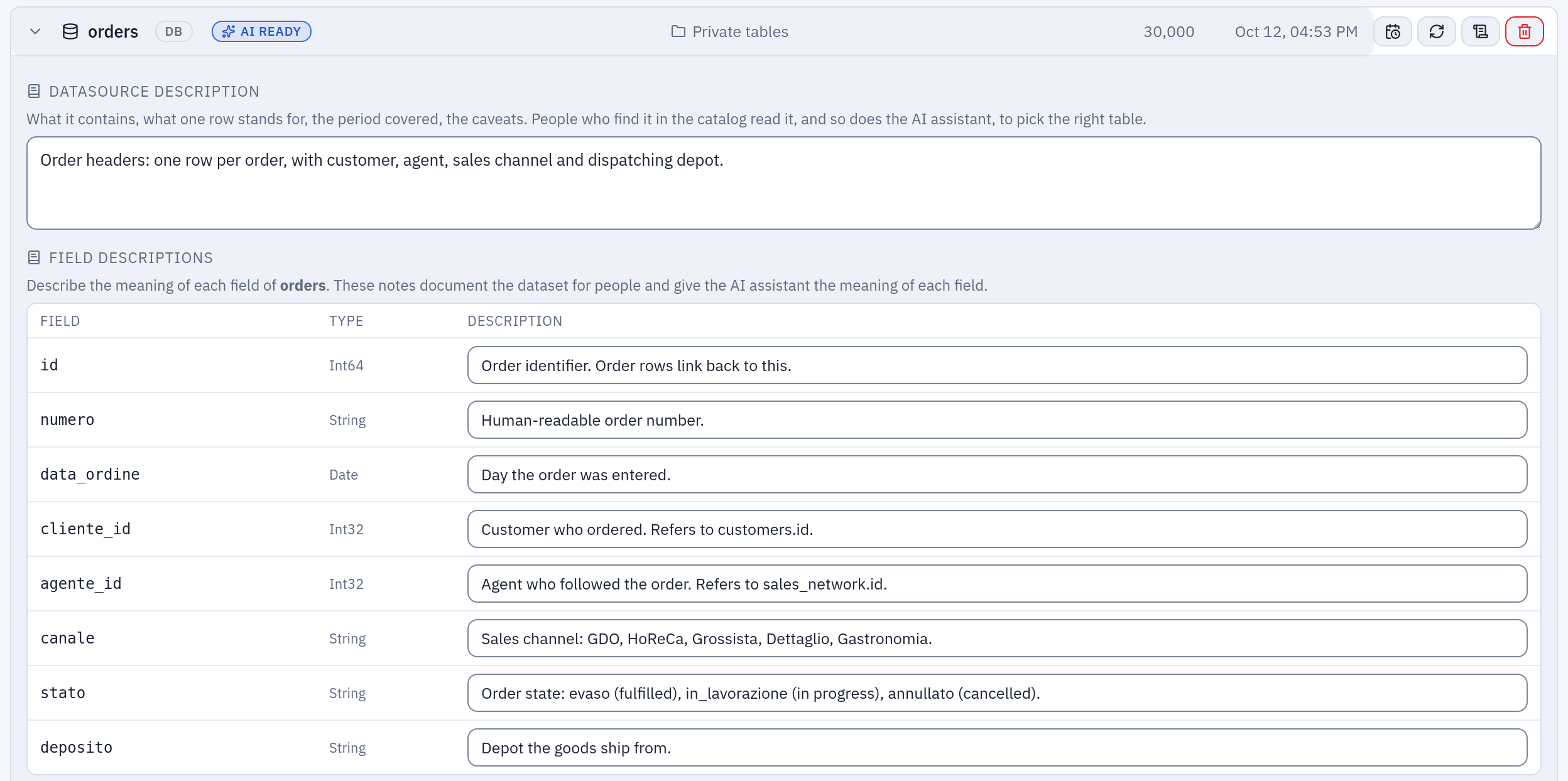
orders in the Datasources page: where it is read from, the Datasource description, a description for every field, and the AI ready badge they earn.
Sort keys
A datasource from a database table or query can be written ordered by some of its
columns («Order by» when you create it, Order in the Datasources page later). The
import adds an ORDER BY on those columns, in that order, and the parquet comes out
sorted: filters and charts on them in the Viewer read less. A change applies from the
next refresh. Prefer columns the source database has an index on.
A datasource written by a flow takes its order from the flow's Output node, at every run. File, SharePoint, API and Google Sheets datasources keep the rows in the order of the files, of the responses or of the sheet and take no sort keys.
Data contract
A datasource can carry a data contract: rules on its columns, values and row count, each with a severity. The contract is checked on the new data before it replaces the snapshot, for a refresh as for a flow or a script that writes the datasource. A rule of severity error that fails refuses the new data: the datasource keeps the last good snapshot and the report says which rule failed. A warning is recorded and the data goes through. See Data contracts.
Folders and permissions
A datasource lives in a folder and follows that folder's permissions, like flows do. Connections live in folders too, and the CONNECT permission on a connection's folder is what lets someone read through it.
| To | You need |
|---|---|
| See a datasource and use it in flows, views, scripts, the Viewer | VIEW on its folder |
| Create an imported datasource | EDIT on the destination folder and CONNECT on the connection's folder |
| Refresh it now, or set its schedule | RUN on its folder and CONNECT on the connection's folder |
| Rename it, describe it, change its sort keys, delete it | EDIT on its folder |
| Move it | EDIT on its folder and on the destination |
| Upload a file in the flow editor | EDIT on at least one folder |
| Write it from a flow's Output node | RUN on the flow's folder and EDIT on the datasource's folder |
| Write it from a SQL script | RUN on the script's folder and EDIT on the datasource's folder |
MANAGE on a folder includes all of these, CONNECT too. Administrators can do everything. A datasource used by saved views cannot be deleted until the views are. Every creation, refresh, schedule change, rename, move and deletion is in the audit log. See Permissions.
Lineage
The Lineage page draws, for what you can read, which connection a datasource is imported from, which flow, saved script or SQL script writes it, which flows, scripts, SQL scripts and notebooks read it, which flow groups refresh it or send it by email. With OpenLineage turned on, every refresh and every write is also reported to your data catalog as a job with its inputs and outputs, and every notebook session with what it read: see OpenLineage.
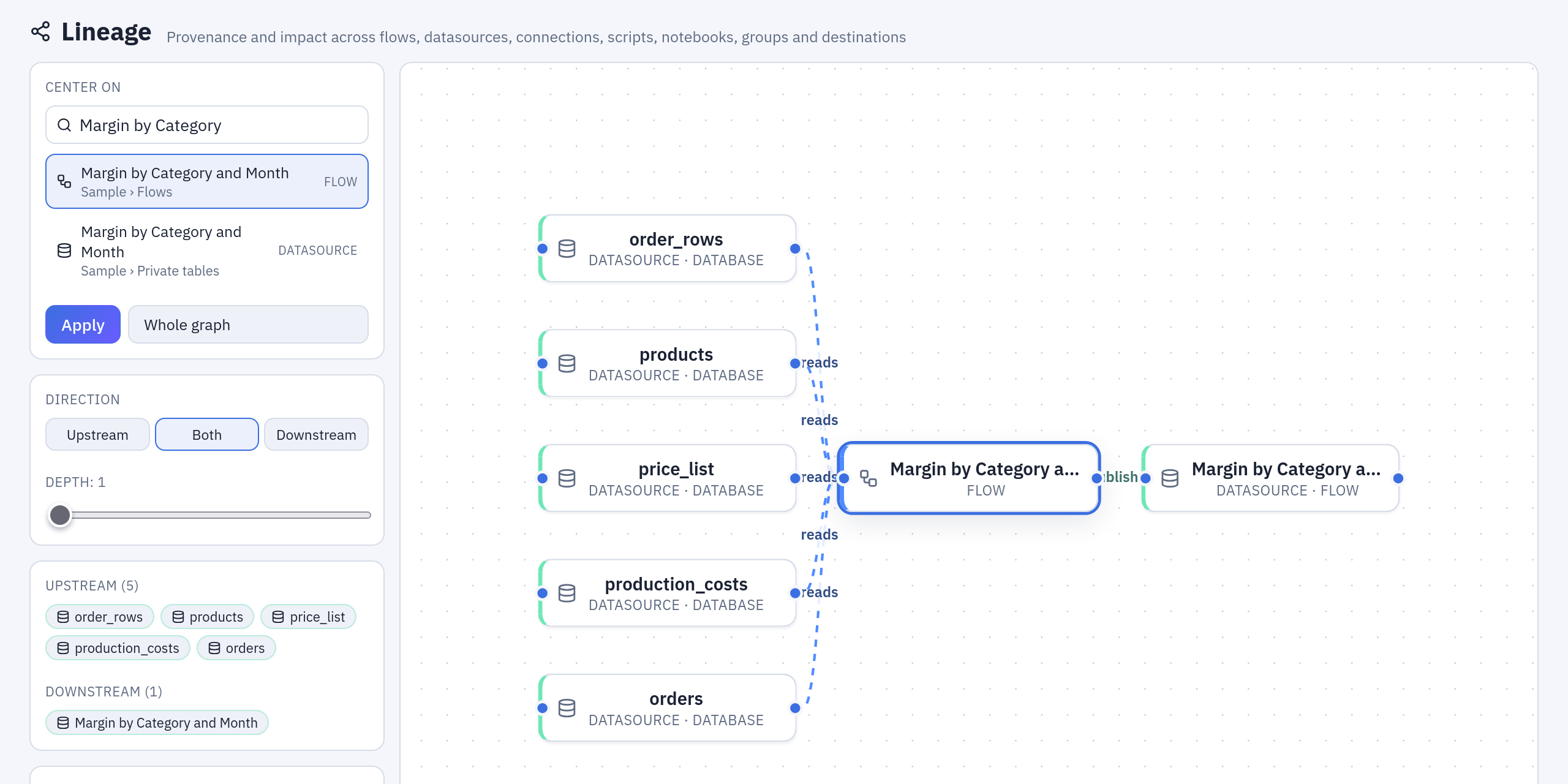
Lineage centred on «Margin by Category and Month»: the five datasources it reads, and the one it publishes.
Related
- Connections: every connection type, how to set it up, who may use it.
- Low-code flows: reading datasources and publishing new ones.
- Dynamic dates: placeholders and variables in file paths and API calls.
- Scheduling: refreshes, flows, scripts and groups on a clock.
- Data contracts and Permissions.